

In Power Platform, to provision an environment, we need at least 1 GB Dataverse storage capacity. Default Power Platform storage capacity depends on many factors such as how many O365, Power Platform Premium and Dynamics licenses an organization have. On top of this, we can procure additional storage capacity by purchasing add-ons.
Power Platform capacity is measured at the tenant level.
Power Platform Capacity:
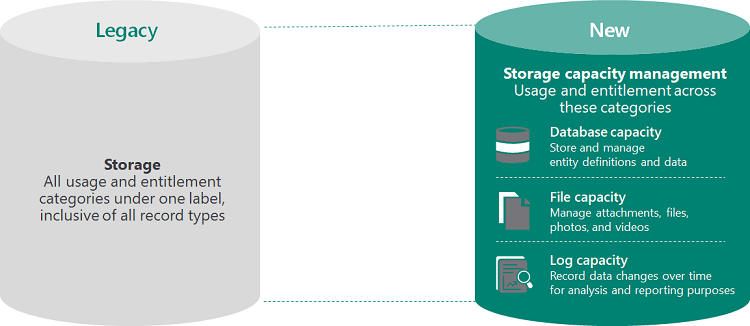
Capacity is measured in separate categories (Database, File and Log) as shown in the above picture.
When a tenant’s capacity exceeds, following operations cannot be performed:
a. Create a new environment (requires minimum 1GB capacity)
b. Copy an environment
c. Restore an environment
d. Convert a trial environment to paid
e. Recover an environment
f. Add Dataverse database to an existing environment
Power Platform System Notifications for Capacity:
- First Notification: Notifications for capacity approaching storage limits will be triggered when one of the 3 storage capacities (database, file or log) have less than 15% of space available.
- Second Notification: Another warning notification that admin operations could be impacted will be sent when any of the 3 storage capacities (database, file or log) have less than 5% of space available.
- Final Notification: When the tenant is “in overage” (storage usage exceeds capacity entitlements)
Who receives above notifications?
- Tenant Admins
- Power Platform Admins
- Dynamics 365 Admins
Important Note:
- Above notifications are sent weekly basis.
- There is no option for a customer to opt-out of the above notifications or delegate these notifications to someone else.
- Apart from notifications, admins will see a notification banner in the Power Platform admin center when a tenant has exceeded storage capacity.
Now, we will review a use case often many customers run into.
Use case: In my organization, Central IT team manages the tenant and wants to monitor the capacity consumption for each of the environment. Central IT wants to cross-charge capacity consumption to business units.
Solution:
Central IT team configure approved capacity per environment and update environment meta data by associating a business unit and cost code for cross-charging purposes. Central IT receives additional notifications when environments are close to or over their approved capacity.
The above solution can be achieved by using Power Platform Admin View app provided within Center of Excellence (CoE) toolkit.
Reference: https://learn.microsoft.com/en-us/power-platform/guidance/coe/starter-kit
Steps to configure capacity approval limits:
A. Open the Power Platform Admin View app and select Environments
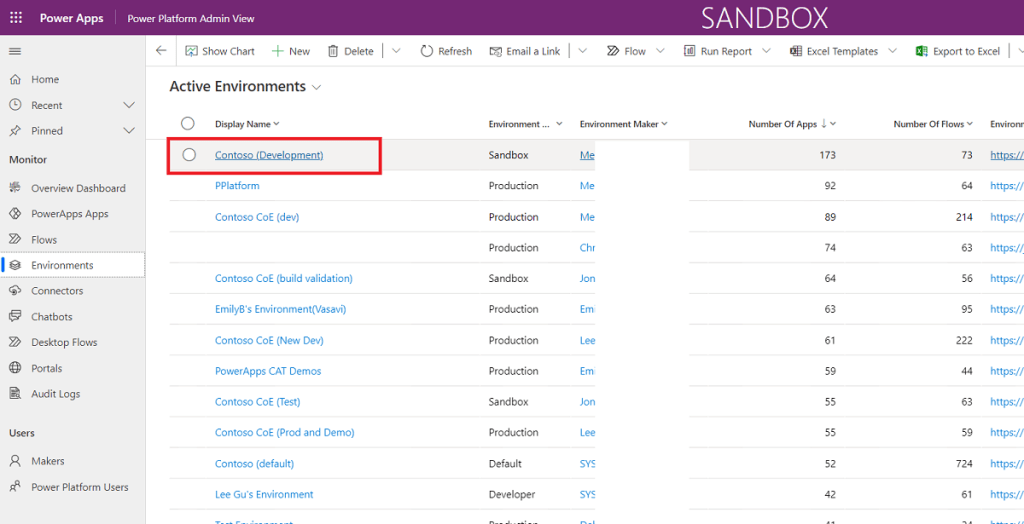
B. Select the environment you want to configure approved capacity for
C. Configure approved capacity for database, file and log entries
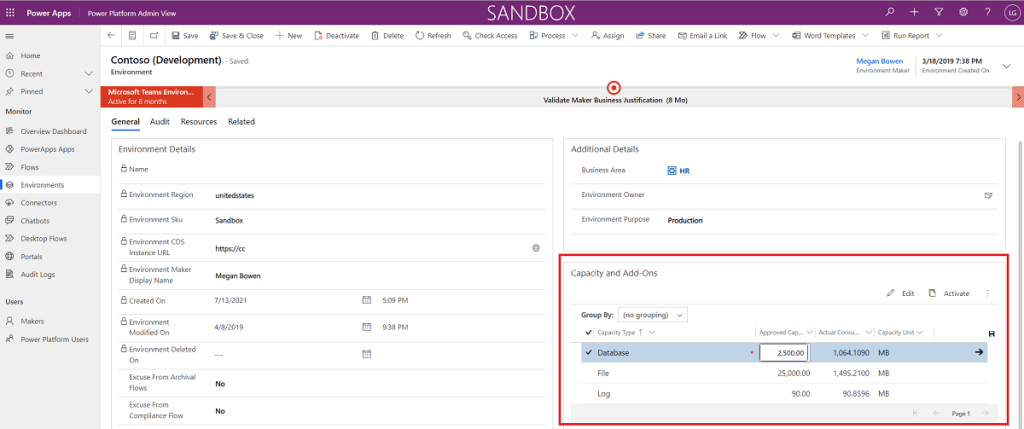
D. Select or Create Business Unit and Cost Code metadata.
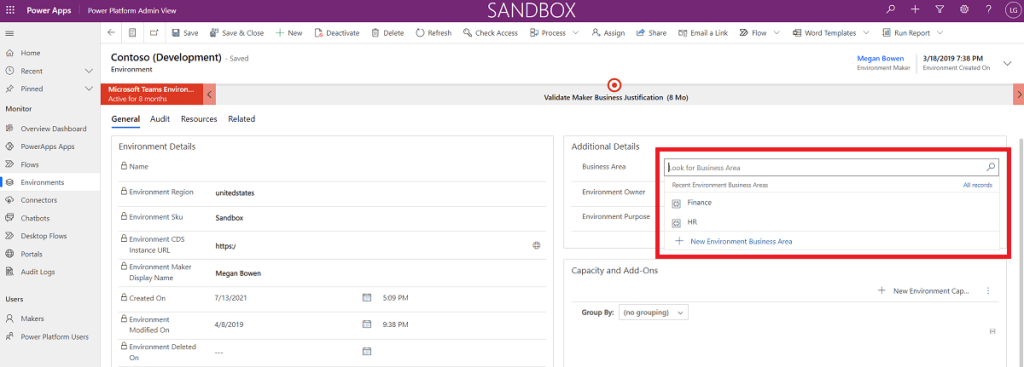
We are done with the configuration. Now, the Center of Excellenct (CoE) background processes (flows) will run on a schedule and sends notifications to Power Platform Admins if environments are over or 80% close to their approved capacity.
Note that the approved capacity limits are soft limits. The limits do NOT restrict any operations. It is just for monitoring purpose only.
Based on the usage, if we need to buy additional capacity add-ons, now the administrators know which environment, business unit and cost code to bill.
Also, we can adjust existing CoE background jobs (only in unmanaged solution) or write our own flows to send notifications to business unit directly on monthly basis.
Conclusion:
Power Platform requires continuous monitoring to maintain a healthy platform. It is recommended that Power Platform Administrators should automate all monitoring tasks to make their life easy.


Leave a reply to Azamfarooq Cancel reply