

What is Delegation in Power Apps?
Delegation in Power Apps refers to the process where data processing is pushed to the data source (like SharePoint, Dataverse, SQL Server, etc.) instead of being handled locally in Power Apps. This improves performance by allowing large datasets to be queried efficiently without exceeding Power Apps’ built-in limits.
Why is Delegation Important?
Power Apps cannot retrieve all records from a large data source at once due to performance constraints. Instead, it delegates (sends) the query to the data source, which processes it and returns only the necessary data.
🔹 Without delegation: Power Apps can only retrieve up to 500 records (default) or 2000 records (configurable).
🔹 With delegation: Power Apps can work with tens of thousands of records efficiently.
Review Application Requirements keeping SharePoint in-mind
SharePoint is a content / document management system. It is not a relational database system. SharePoint lists and libraries supports large volume of data such as 30 million items.
While collecting application requirements, make sure to include following questions:
- What are the fields, data types of fields required for the application
- Data validation requirements
- Any reference data for drop down or combo box fields in the application
- Data sorting requirements
- Data Filtering requirements
- Number of records or items the application is going to handle
- Any requirements for archival or deletion of obsolete or old items
SharePoint Schema Recommendations
- Try creating a separate lists to store all reference data and show the values in drop downs/ combo boxes. Store the selected value in Single line of text field.
- Try avoiding complex fields such as Managed Metadata, Lookups, Calculated Columns, Multi-line Text (Rich Text), Hyperlink, External Data.
- Try avoiding too many Person or Group fields
- Power Apps & Power Automate allows up to 12 complex columns which includes Person or Group (including Created By and Modified By) and Managed Metadata fields. Once the limit exceeds, we will start seeing the error in the Power App & Power Automate.
- Make sure to create Indexed Columns in each and every SharePoint list / library the application uses.
Use Delegable Functions
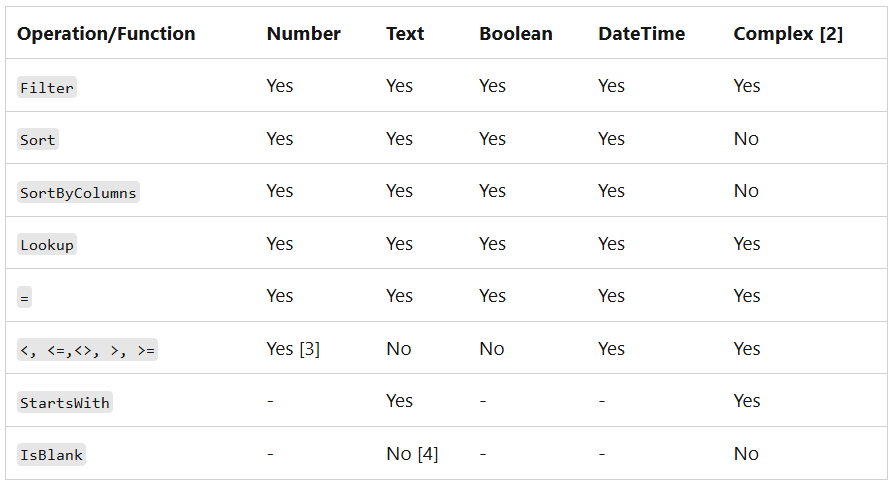
The above table shows supported delegable functions. Understand which function is supported for SharePoint column data type.
❌ Avoid Non-Delegable Expressions:
🚫 If(), With(), StartsWith(), Mid(), Left(), Right() (For text filtering, use Filter() instead).
🚫 CountIf(), Sum(), Average(), Min(), Max() (Use collections instead).
Optimize Data Calls & Reduce Network Load
- Load Only Necessary Columns: Use ShowColumns() to load only necessary columns from the SharePoint list.
- On start of the app, load all the configuration or reusable data into collections to avoid frequent calls to SharePoint.
- Paginate large data sets manually. Ex: ClearCollect(colPagedData, FirstN(YourList, 500))
Increase Delegation Limit in App Settings
In the Canvas app settings, you can find Data Row limit setting. The default value is 500 and it can be set up to 2000.
During development, I recommend to set the Data Row limit value to 1 and ensure your application is loading all the data values. If not, you need to address delegation issues.
If you have any reference lists or configuration list, then set Data Row limit value based on the maximum number of values in a list. It is OK to have delegation warnings for such lists.
Key Takeaways
Building a canvas app seems to be easy with SharePoint but ensure that you understand the concept of delegation and plan to handle any delegation issues. Always check App Checker to ensure that there are no delegation warnings.

Leave a comment